
How to place an order
Ready to order? Choose your item, add your details and select how you’d like to receive and pay for it.
This guide is for the website. Screenshots use an example order; prices and charges may change. Tap a screenshot to enlarge it.
1Find your product
Use the search bar to enter a product name, or browse a category such as PlayStation, Audioverse or Mobile Gaming. Select a matching result to open the product page.
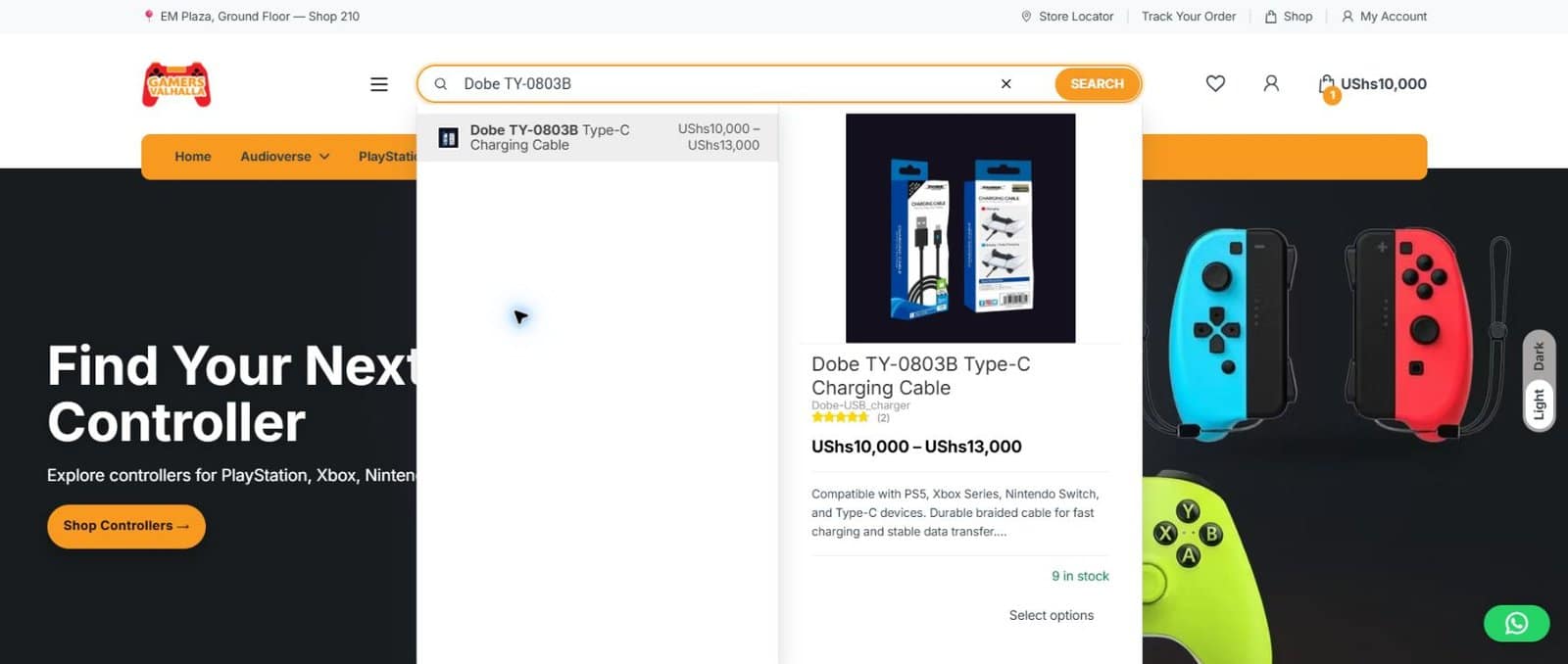
2Choose your options and quantity
Check the description and compatibility. If the product offers a size, colour or other option, select it first. Check the selected price and quantity, then choose Add to cart.
Not sure which option suits your device? Use Ask on WhatsApp on the product page before ordering.

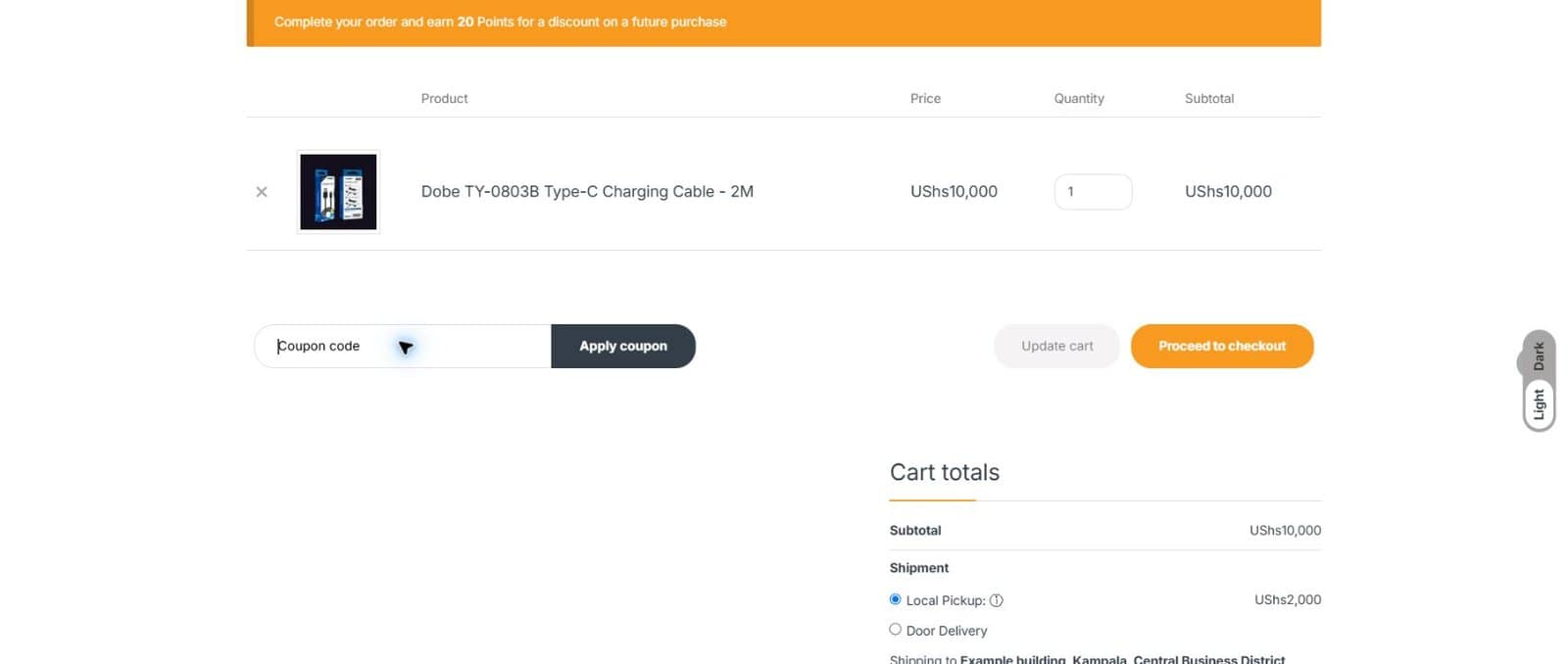
3Check your cart
Open View cart or the cart icon. Check each item, option and quantity. Remove anything you don’t need using ×. After changing quantities, select Update cart if shown, then choose Proceed to checkout.
If you’re asked to sign in, log in or create an account to continue.
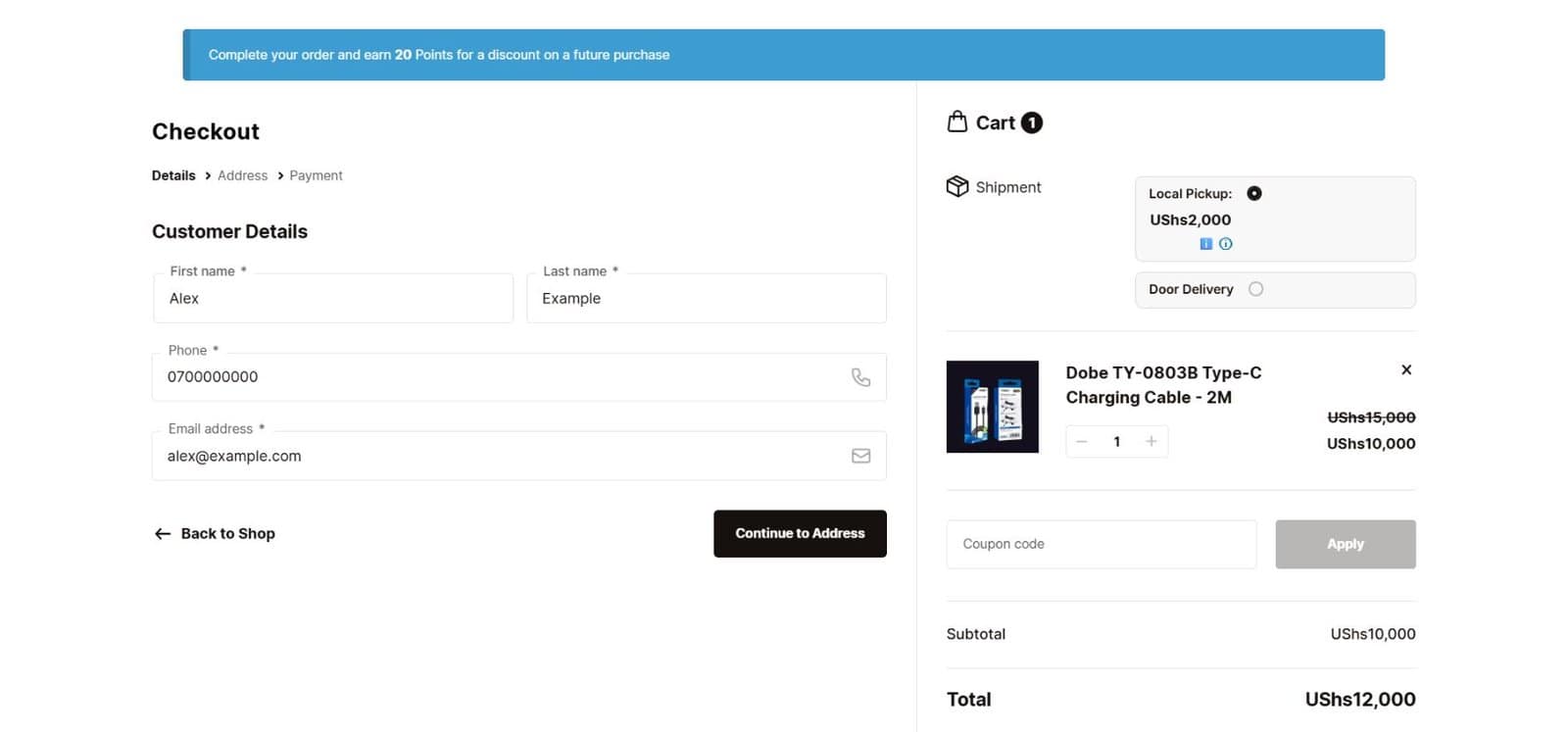
4Add your contact details
Enter your first name, last name, phone number and email address. Use details where we can reach you about this order. Select Continue to Address.
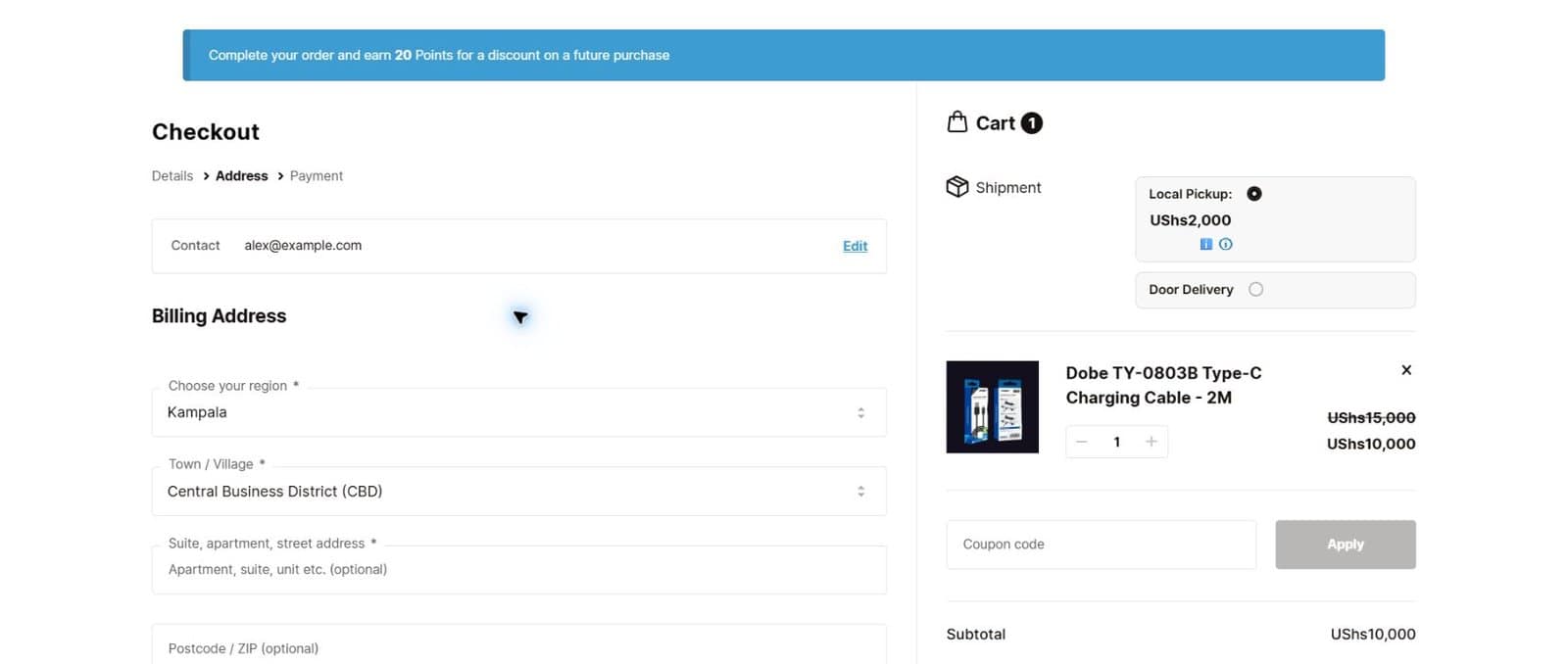
5Add your address and choose delivery or pickup
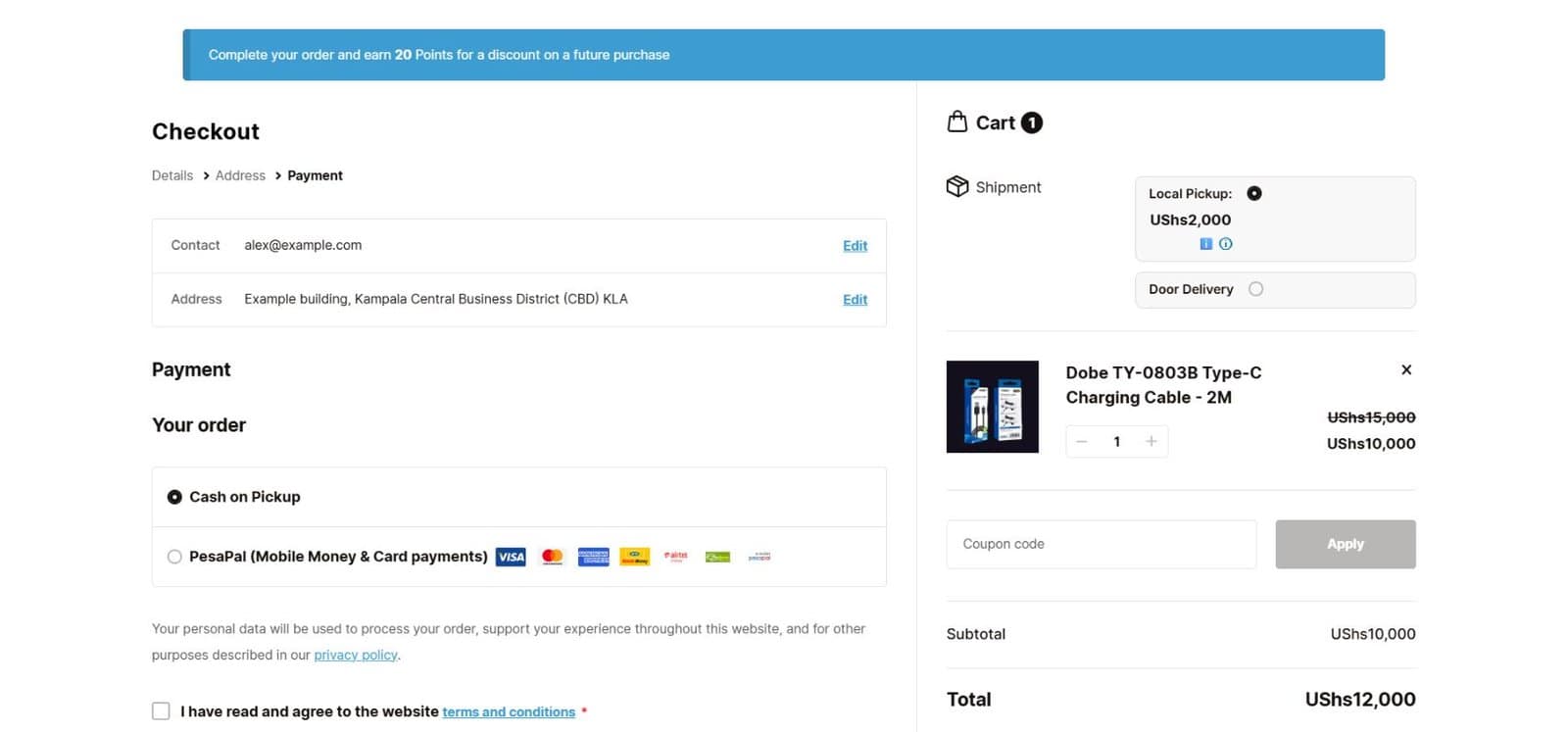
Select your region and town or village, then complete the required address fields. Choose from the shipping options shown in your order summary: Local Pickup or Door Delivery, where available.
Check the charge beside your chosen option. For pickup, open the pickup information icon to check the location. Select Continue to Payment.
6Choose payment and place your order
Select a payment method offered for your order. Cash on Pickup means you pay when collecting; Cash on Delivery, when offered, means you pay when your order arrives. PesaPal supports MTN Mobile Money, Airtel Money and the card options displayed at checkout.
Review your items, contact details, shipping choice and final total. Read the terms and conditions and tick the agreement box if you agree. Scroll down and select the final Pay button showing your total.
For PesaPal, follow the payment prompts and return to the website afterwards. With a cash option, you’ll pay at collection or delivery.
7Keep your order number
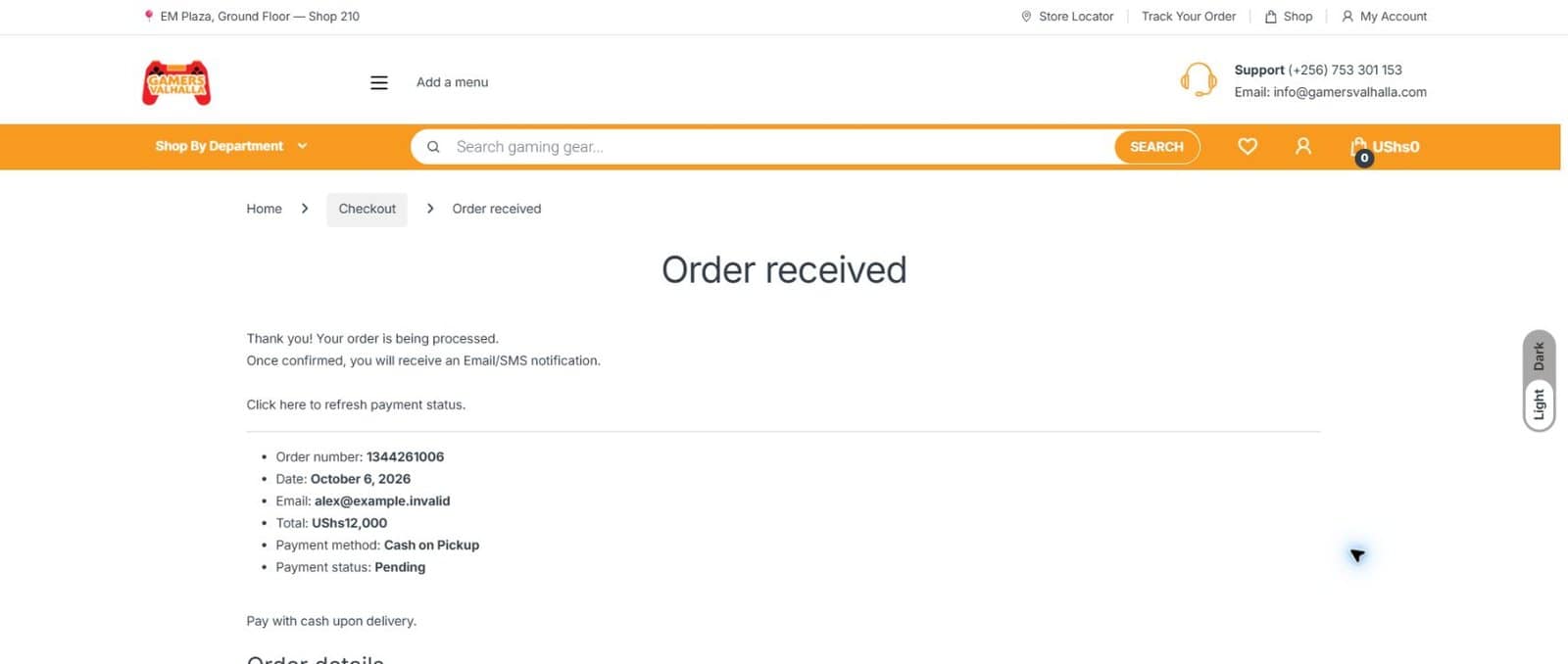
Look for the Order received screen and save your order number. Check the payment status too: an order being received does not always mean an online payment has finished.
You can revisit your orders through My Account or use Track Your Order.
Need a hand?
Visit Contact Us and tell us the product or order number you need help with.