

Play PS2 Games on Your Computer: Easy PCSX2 Setup Guide
Leave a commentThat familiar controller. The opening music. One more match before bed. If you want to revisit your PlayStation 2 collection, this PCSX2 setup guide walks you through installing the emulator on a Windows PC, adding your own BIOS and games, and setting up a controller.
PCSX2 is free emulator software. It does not include a PS2 BIOS or commercial games. This guide uses a BIOS dumped from your own console and backups of your own discs. The instructions below follow the current PCSX2 documentation, checked on 12 October 2026; menu wording can change between versions.
1. Check what you need
For this Windows guide, start with a 64-bit PC running Windows 11 or a currently supported Windows 10 version. PCSX2 lists Windows 10 22H2 or 21H2 LTSC as its Windows minimum, alongside 8 GB RAM and a compatible processor and graphics system. A computer meeting the minimum can still struggle with demanding games. Higher rendering resolutions need more graphics power.
- A suitable Windows PC with updated graphics drivers.
- Your own PS2 BIOS dump.
- Your original game discs or properly created disc backups.
- Enough storage for the emulator, games and saves.
- A PC-compatible controller, or a keyboard to begin with.
Before downloading, compare your hardware with the official PCSX2 system requirements. An “i5” or “i7” label alone does not tell you how well a specific machine will run a game.
2. Download and install PCSX2
- Open the official PCSX2 download page.
- Choose the Windows Stable installer for a straightforward beginner setup. Nightly builds receive changes more frequently and are also available.
- Run the downloaded installer and follow its prompts.
- If required, install Microsoft’s latest x64 Visual C++ Redistributable.
- Launch PCSX2 and work through its first-time setup wizard.
If you choose the portable download instead, extract the entire archive into a folder before running pcsx2-qt. Do not launch it from inside the compressed archive. See the official installation instructions if the package differs from these steps.

3. Add the BIOS from your own PS2
The BIOS is the console software PCSX2 needs to start. Installing the emulator alone is not enough.
- If you have not created a BIOS dump, follow the official BIOS dumping guide. It explains the supported console methods and the biosdrain utility.
- Copy the resulting BIOS files from your console to a folder on your PC. Keep a separate backup.
- At the BIOS step in PCSX2 setup, point the BIOS directory to that folder and select the detected BIOS.
- If nothing appears, confirm that the files are extracted and that you selected the folder actually containing the dump.
Do not confuse the BIOS with a game ISO. They are different files. This guide does not provide a BIOS download or a bundle of commercial games.
4. Add your PS2 games
Create one folder for your disc backups, such as Documents/PS2 Games. Keeping the files together makes the game library easier to maintain.
If you are starting from original discs, use a compatible DVD/CD drive and follow the official disc-backup instructions. That guide covers Media Preservation Frontend and other tools. Simply renaming a ZIP or RAR file to ISO does not convert it into a usable disc image.
Add your game folder during setup, or open PCSX2’s Game List settings and add it there afterwards. Enable scanning of subfolders if you organise games in separate folders, then refresh the library. Keep the game files in their saved location; moving them later can break library entries.
5. Connect and map your controller
A USB connection is a practical starting point because it removes Bluetooth pairing from the setup. Your controller still needs to support Windows input; console compatibility by itself does not guarantee PC support.
- Connect the controller and let Windows recognise it.
- In PCSX2, open Settings → Controllers.
- Use SDL as the first input source to try.
- Open Controller Port 1, choose Automatic Mapping, and select your connected controller.
- Check the sticks, directional buttons, face buttons and shoulder buttons in a game. If automatic mapping fails, assign the inputs manually.
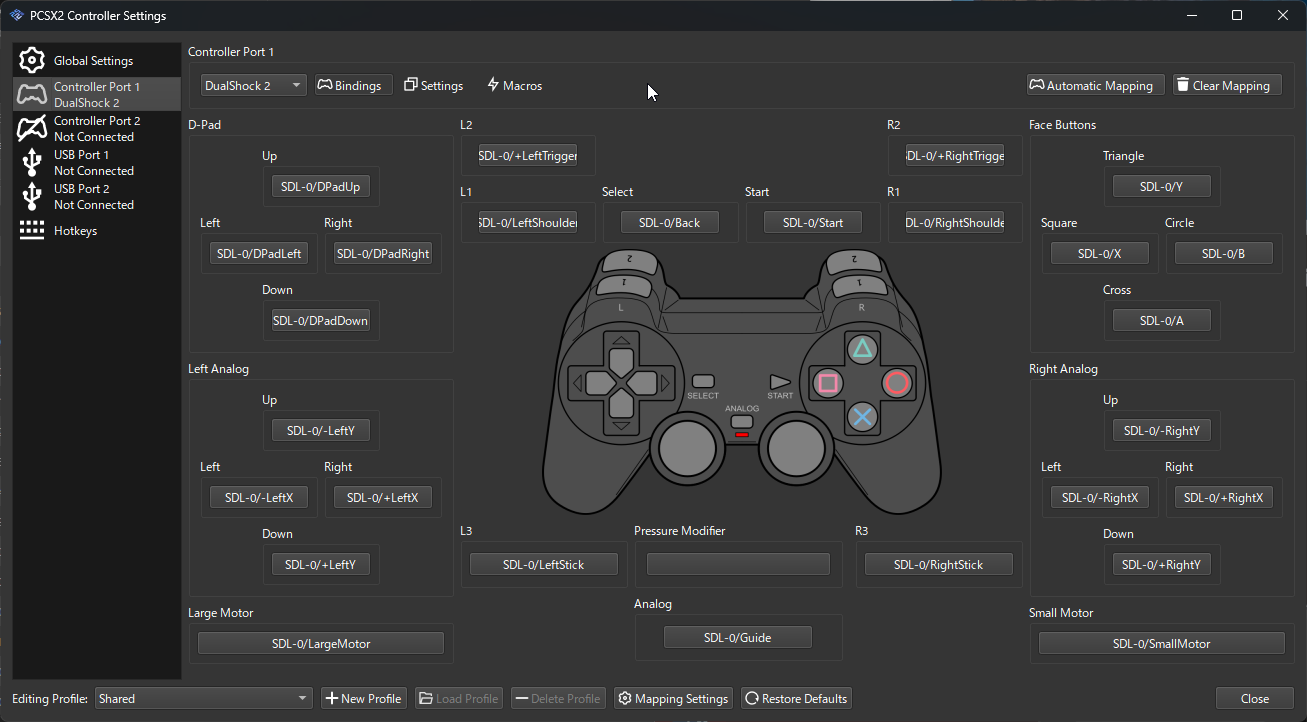
If buttons are mixed up on a third-party controller, the official guide explains SDL Raw Input and manual mapping. If an XInput controller does not work through SDL, XInput is a Windows fallback. Read the PCSX2 controller guide for the matching device options.
6. Launch your game and keep your saves
Double-click a game in the library to launch it. Begin with default settings and native internal resolution while checking that the game runs properly. Once it is stable, try increasing internal resolution one step at a time; go back down if performance suffers. A higher resolution cannot repair a bad disc backup or an incompatible game.
PCSX2 uses virtual memory cards for ordinary PS2 saves. Open Settings → Memory Cards to check the card in Slot 1, then save using the game’s normal save menu. Consult the memory-card guide before moving or replacing cards. Back up your card files before emulator upgrades or reinstalling your PC.
Save states can be convenient, but also make regular in-game saves. Treat a save state as an extra convenience, not your only copy of progress.
7. Common problems and what to check first
| Problem | First checks |
|---|---|
| No BIOS detected | Check the selected directory and extracted BIOS files. Revisit the official dump instructions if the files are incomplete. |
| Game missing from the library | Check the Game List folder, subfolder scanning and whether you have a supported disc image rather than a compressed archive. |
| Game is slow or audio stutters | Return to native resolution, close demanding background apps, update graphics drivers and compare your hardware with the requirements. |
| Controller does not respond | Check Windows detection, Controller Port 1 and mapping. Try USB first. |
| Controller buttons pause the game unexpectedly | Fully exit Steam and test again; Steam Input can send desktop keyboard shortcuts. |
| One game freezes or has broken graphics | Check the exact game in the compatibility database and verify your disc backup. |
For persistent problems, use the official troubleshooting section. Avoid copying random speedhack settings for a different game or PC.
Frequently asked questions
Is PCSX2 free?
Yes. PCSX2 is free and open-source. Your console BIOS and game library are separate from the emulator.
Will every laptop run every PS2 game?
No. Performance depends on the processor, graphics hardware, settings and the game. Check the exact hardware and game before assuming compatibility.
Can I use a keyboard?
You can map keyboard inputs, although a compatible controller is often more comfortable for games designed around two analogue sticks.
Do I need to download old plugins?
This guide is for the current PCSX2 interface. Follow its current documentation rather than old tutorials that rely on the legacy plugin setup.
Build a comfortable PC gaming setup
If you are choosing a controller, read our gaming controller buying guide and compare Windows support, connection options and button layout before buying. You can also explore more Gamers Valhalla Buying Guides.
Which PS2 game would you revisit first? Share this guide with a friend who still talks about those PS2 weekends.
Independent guide by Gamers Valhalla. PCSX2 documentation screenshots are credited to the PCSX2 project. This is a documentation-based setup guide, not a claim of hands-on testing on every PC or game.
Join the conversation on Gamers Valhalla on Facebook or follow @gamersvalhallaug on Instagram for more gaming setup ideas.
Tell us which PS2 game you would play first on our Facebook guide post or Instagram guide post.